
Microsoft Addresses Long-Standing Windows 11 Taskbar Complaints with Customization Updates
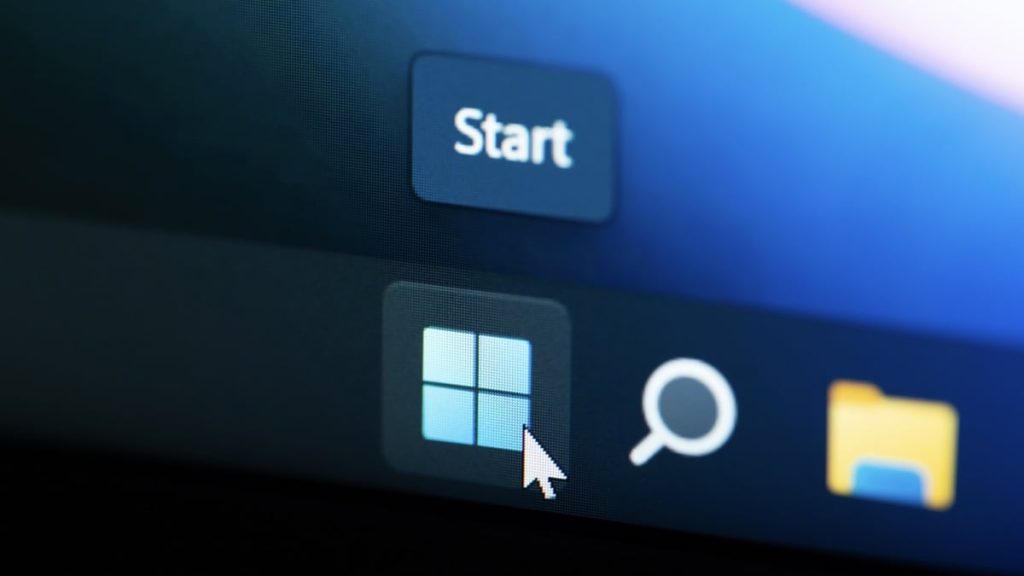
Microsoft is finally responding to widespread criticism about Windows 11’s restrictive interface design by introducing features that should have been included from day one. The company is currently testing new customization options that allow users to reposition and resize the taskbar, along with streamlined Start menu controls. These updates are rolling out to beta testers in the Experimental channel, though there’s no guarantee they’ll reach general users anytime soon.
Honestly, it’s about time. The inability to move the taskbar away from the bottom of the screen has been one of the most frustrating aspects of Windows 11 since its launch. While power users have resorted to third-party applications and registry modifications to work around these limitations, the average user has been stuck with Microsoft’s rigid design choices. This move suggests the company is finally listening to feedback, though I can’t help but wonder why such basic functionality was removed in the first place.
Taskbar Freedom Finally Arrives
The most significant change allows users to position the taskbar on any edge of the screen – top, bottom, left, or right. When repositioned, the taskbar automatically adjusts its layout and icon alignment to match the new orientation. For vertical positioning, you can align icons at the top or center, while horizontal placement offers left or center alignment options.
This flexibility will be particularly valuable for users with multi-monitor setups or those who prefer non-traditional workflows. However, I suspect most casual users will stick with the default bottom position simply because that’s what they’re accustomed to. The real beneficiaries here are power users and professionals who need every pixel of vertical screen space for their work.
A notable addition is the “Never combine” option for side-mounted taskbars, which displays full window labels in a vertical list format. This feature essentially recreates the classic Windows taskbar experience that many users have been missing. It’s particularly useful for users who frequently juggle multiple windows from the same application.
Start Menu Gets Long-Overdue Cleanup Options
Microsoft is also consolidating Start menu customization settings, making it easier to strip away unwanted elements. The new controls allow users to independently toggle sections like Pinned apps, Recommendations, and the All apps list. There’s also a dedicated option to disable recommendations without affecting the Recent Files section in File Explorer.
I think this is where Microsoft really missed the mark initially. The Windows 11 Start menu became cluttered with recommendations, smartphone integrations, and other features that many users simply don’t want. These new customization options should have been available from launch, not added as an afterthought following user complaints.
The ability to choose between small and large Start menu sizes addresses another common frustration, especially for users with multiple displays of different resolutions. Previously, the Start menu would inconsistently adapt to different screen configurations, creating a jarring user experience.
For privacy-conscious users, there’s now an option to hide your name and profile picture from the Start menu. Combined with the ability to disable recommendations and resize the interface, you can create a minimal, focused Start menu that prioritizes functionality over Microsoft’s data collection and engagement strategies.
These changes represent a step in the right direction, but they also highlight how Microsoft prioritized form over function when designing Windows 11. While these updates will benefit power users and those frustrated with the current limitations, casual users who have adapted to the existing interface may not see much value in the added complexity. The real test will be whether Microsoft continues to listen to user feedback or returns to imposing restrictive design decisions in future updates.